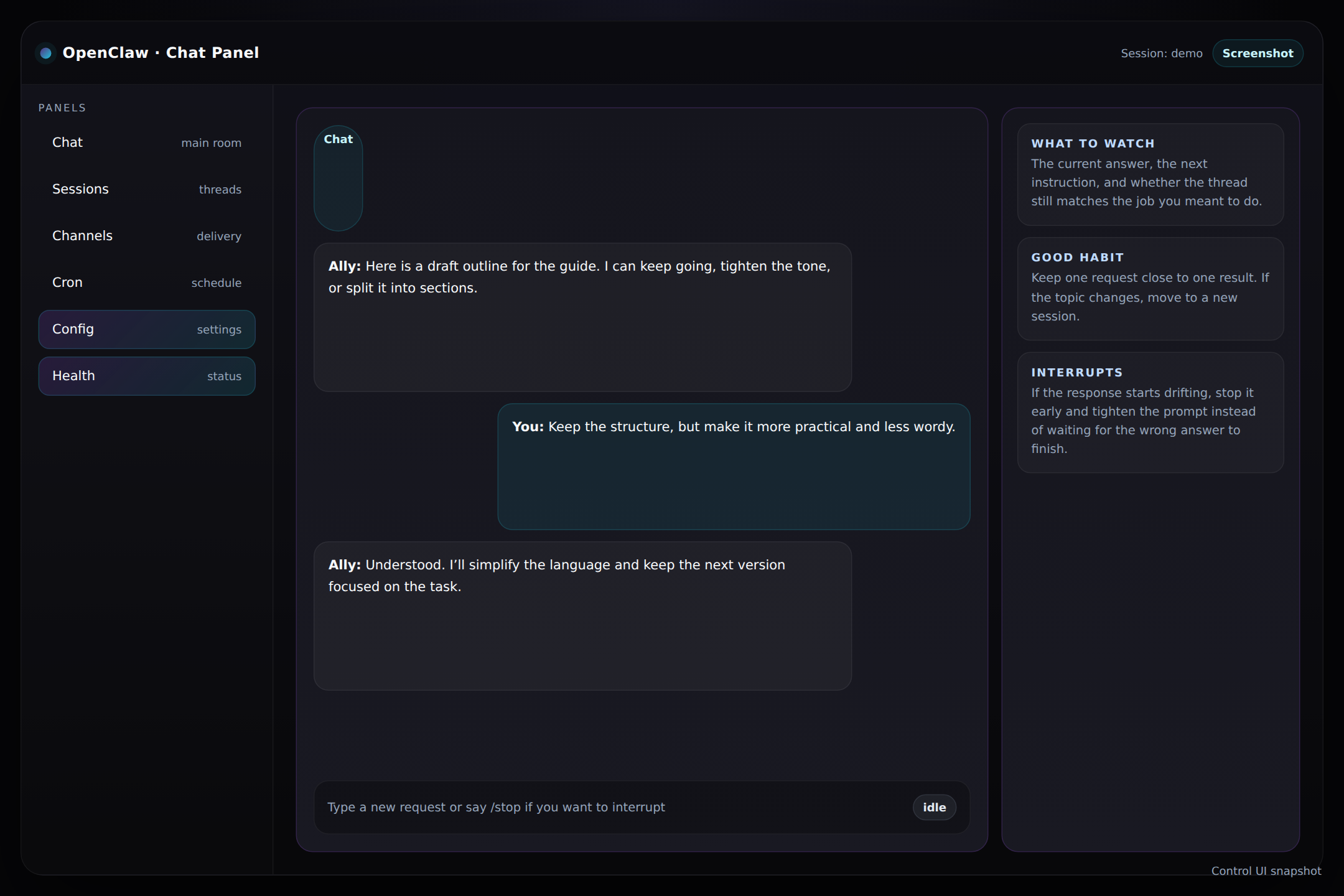
What to notice
- The conversation area shows what your Ally is doing right now and what it already said.
- The input box is where you write the next instruction or clarification.
- The stop control matters when the answer is going long or drifting off course.
Rule of thumb
If the answer is still useful, keep going. If it is not, stop it early and tighten the request.
Good use cases
Drafting, brainstorming, quick research, and any task where you want the Ally to stay in one thread.
How to read the screen
The chat panel is not just a text box. It is the active workspace, so pay attention to what the assistant is doing, what you have already asked, and whether the current answer still matches your goal.
Tip: If the thread gets crowded or the topic changes, move to Sessions instead of forcing the whole conversation to do too much at once.